Cybersecurity
October 22, 2026
Compare endpoint protection solutions with this guide covering EPP, EDR, and Open XDR to reduce risk and strengthen your security posture.
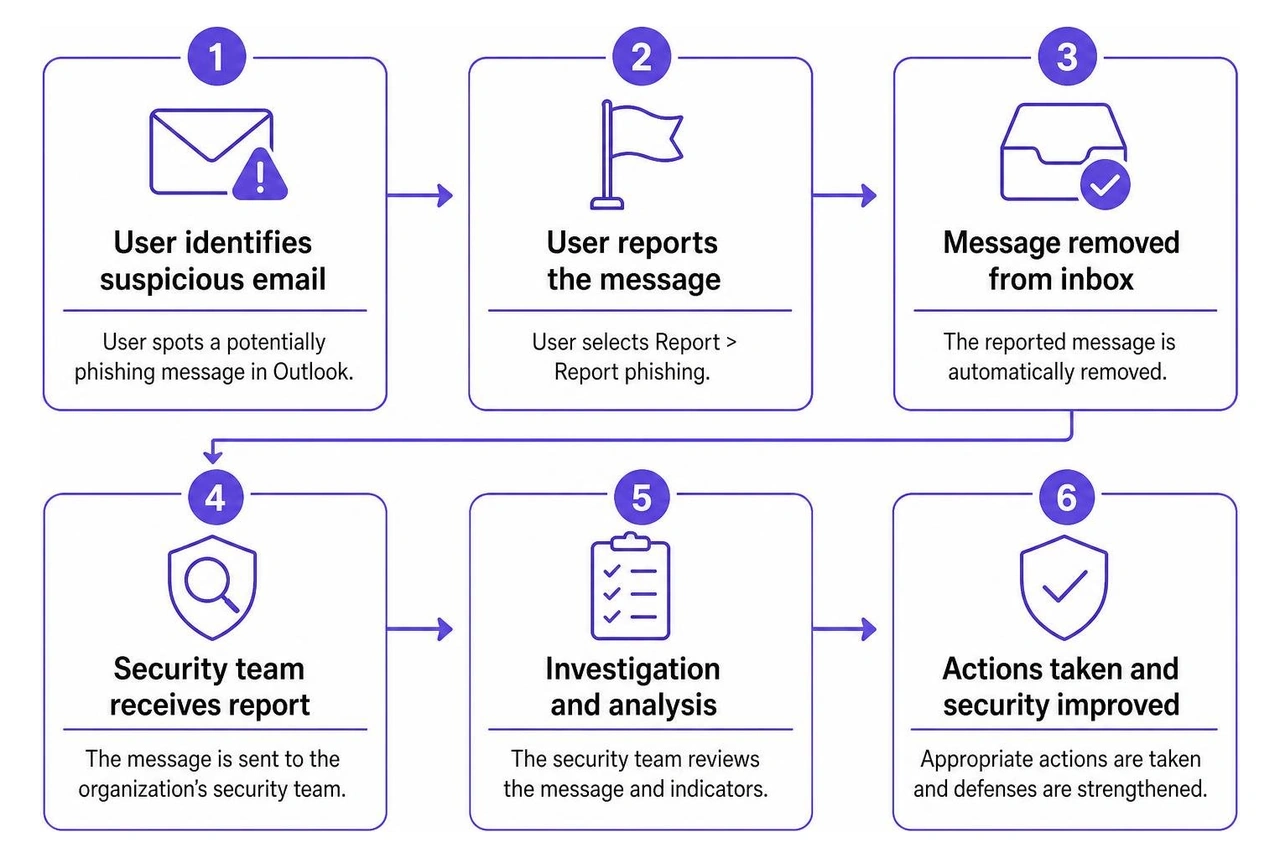
Select the suspicious email, then choose Report > Report phishing in Outlook. On mobile, open the message and look for Report in the three-dot menu. If the option is missing, ask your IT team how to submit the original message. Don't click links or open attachments while you wait.
Reporting removes the message from your inbox, but it does not block the sender. It also gives your organization's security team a chance to investigate. Training helps people spot scams, but reporting works best alongside security controls that can detect and respond to threats across accounts and devices.
WhiteDog complements Microsoft 365 rather than replacing it. Its Delta 360 (Δ360), built on WhiteDog's Open XDR framework, connects Microsoft and third-party security signals to improve visibility, hardening, detection, exposure management, and response. Continuous attack surface management and 24/7 security operations build on that correlated intelligence to find threats earlier and respond with confidence.
Phishing attacks remain one of the primary delivery mechanisms for ransomware, business email compromise, and credential theft. Modern threat actors rarely rely on clumsy, poorly formatted spam. Instead, they deploy targeted social engineering, impersonate known executives, and craft believable operational requests like urgent invoice reviews or password reset notifications.
Microsoft Outlook includes several built-in visual cues that help users evaluate whether an incoming message is legitimate before interacting with its contents:
?): When Outlook cannot authenticate a sender using standard domain authentication protocols—specifically SPF, DKIM, and DMARC—it replaces the sender's avatar or profile image with a question mark. If an email appears to come from a regular contact or external vendor who normally has a verified profile photo, a sudden question mark is a strong indicator of spoofing.via Tag: When there is a mismatch between the domain in the visible "From" address and the actual sending server domain, Outlook displays an underlined "via" tag (for example, finance@yourcompany.com via externalmailservice.net). This often occurs when attackers use third-party mass-mailing infrastructure or open relays to impersonate trusted brands.ceo.company@gmail.com) and configure the display name to match an internal executive. Hovering over the sender's name reveals the true email address without opening any links or attachments.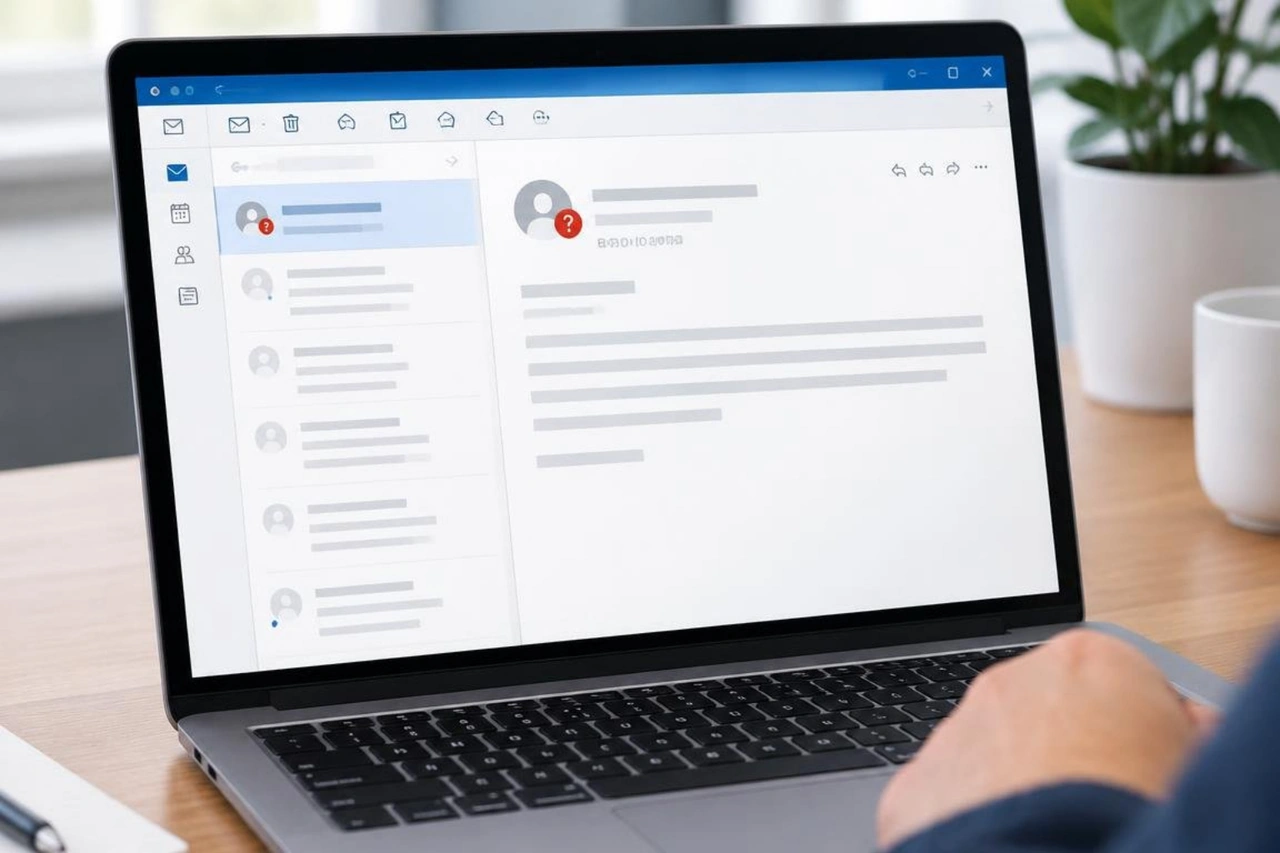
While these visual indicators offer immediate clues, sophisticated social engineering campaigns increasingly bypass static gateway rules. Implementing ai phishing detection enables organizations to analyze behavioral communication baselines and catch deceptive language, anomalous routing, and hidden payload links before users ever have to make a judgment call.
Users often confuse marking an email as "Junk" with reporting it as "Phishing." These two actions trigger fundamentally different routing behaviors and security outcomes within Outlook and Microsoft 365.
| Reporting Action | Folder Destination | Impact on Sender Address | Security Analysis Outcome |
|---|---|---|---|
| Report as Junk | Moved to Junk Email folder | Sender added to your personal Blocked Senders list | Routed to spam filters to adjust bulk mail heuristics |
| Report as Phishing | Permanently deleted from mailbox (recoverable via Deleted Items) | Sender is not blocked automatically | Packaged with full RFC headers and submitted to security team for triage |
| Mark as Not Junk | Moved back to Inbox | Sender added to Safe Senders list | Flagged as a false positive to retrain filtering models |
Organizations running Microsoft 365 can deploy the native Microsoft Report button across their environment. The native button is supported on Outlook for Microsoft 365 (desktop client), Outlook on the web, Outlook for Mac (version 16.89 or later), the new Outlook for Windows, and Outlook mobile apps (iOS version 4.2511+ and Android version 4.2446+).
Depending on your tenant's administrative settings, using this button routes reported messages to Microsoft, your internal security operations team, or a shared quarantine mailbox for forensic review.
Whether you are using Classic Outlook on Windows, the new Outlook interface, or Outlook on the web, reporting a suspicious message takes only a few clicks:
In Classic Outlook for Windows:
In New Outlook for Windows and Outlook on the Web:
In Outlook for Mac:
Threat actors often target mobile users because mobile interfaces truncate sender headers, making display name spoofing easier to disguise.
Outlook for iOS and Android:
...) in the top-right corner of the message header (do not tap the three dots at the very top of your phone screen, which manage folder settings).Reporting from Shared Mailboxes and Delegated Inboxes:
info@ or billing@), reporting behavior depends on your assigned permissions.In some enterprise environments, the native Report button may be disabled, temporarily broken after an update, or replaced by a custom internal mailbox workflow.
If the reporting button is unavailable, do not simply click standard Forward. Standard forwarding strips critical routing metadata, origin IP addresses, and digital signature headers that security analysts need to investigate the threat.
Instead, submit the message as an intact RFC-2822 attachment:
.eml or .msg file.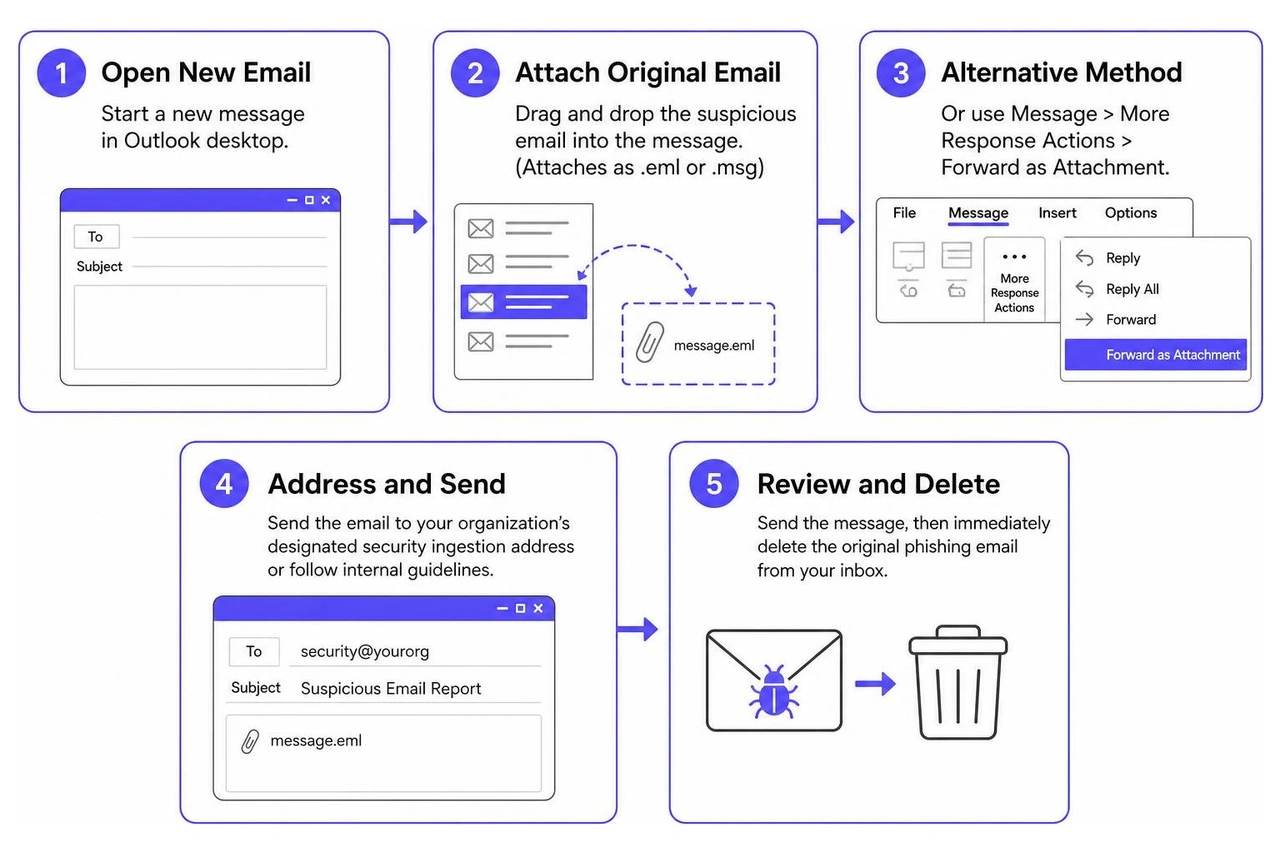
When a user submits a phishing report through Outlook, the action initiates an automated security and triage workflow behind the scenes:
If you or an employee accidentally clicked a link, downloaded an attachment, or entered login credentials before reporting the email, treat the event as a potential account compromise. Take these immediate containment steps:
For detailed incident checklists, see institutional advice on email scam incident reporting from the University of Queensland.
User reporting is a critical feedback loop, but relying on employees as your primary line of defense introduces significant operational risk. Threat actors use generative AI tools to craft hyper-personalized phishing messages, establish legitimate domains that pass basic SPF checks, and execute adversary-in-the-middle (AiTM) proxy attacks that bypass legacy MFA.
Understanding why email security is falling behind helps clarify why organizations need to look beyond phishing simulations: real protection for email attacks. Training and awareness should be viewed as one component of a broader, defense-in-depth security strategy rather than a complete protection model.
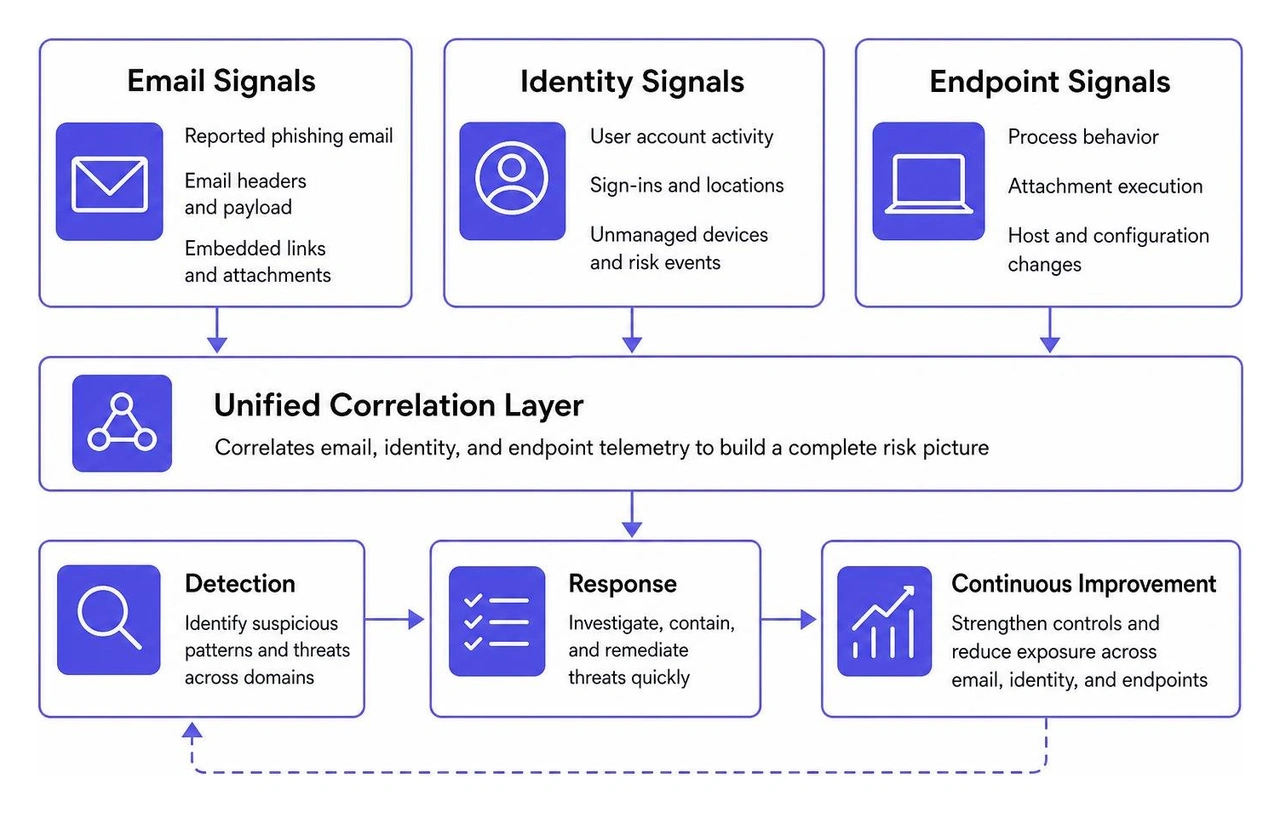
A resilient email security posture requires cross-domain telemetry correlation:
WhiteDog’s continuous attack surface management and 24×7 security operations build on correlated intelligence to identify threats earlier and respond with confidence, ensuring that your organization is never reliant on a single user's ability to spot a deceptive email.
No. When you report an email as phishing, Outlook submits the malicious sample to Microsoft and your IT department for analysis and removes it from your inbox, but it does not add the sender to your Blocked Senders list. Attackers routinely spoof legitimate domains or compromise real corporate accounts; blocking those domains globally could inadvertently stop important business emails. To manually block a specific sender address, right-click the message and select Junk > Block Sender.
If you accidentally report a legitimate email as phishing, the message is moved to your Deleted Items folder. Open Deleted Items, locate the message, and drag it back into your Inbox. If you also added the sender to your Blocked Senders list by mistake, navigate to Settings > Mail > Junk email in Outlook and remove the domain from your blocked senders table.
Yes. In Microsoft 365 tenants with user-reporting configured, all submissions appear in the Microsoft Defender portal under the User reported tab within the Submissions interface. Security administrators can review who submitted the message, inspect the original headers, view automated sandbox detonation results, and initiate tenant-wide remediation actions. This process is standard across enterprise environments, as detailed in USPS employee cybersecurity reporting guidelines.
Knowing how to report phishing emails in Outlook gives users a direct, actionable way to help safeguard their organization. However, user reporting is most effective when integrated into a unified security architecture that provides visibility across the entire attack chain.
WhiteDog complements and extends your existing Microsoft Security investments through modular integration, helping enterprise IT and security leaders maximize the value of their Microsoft 365 environment. Delta 360 (Δ360), built on WhiteDog's Open XDR framework, adds a unified operational and security layer across Microsoft and third-party tools to improve correlation, visibility, security hardening, threat detection, exposure management, and response.
Within our tiered service portfolio, Open XDR delivers unified visibility and detection, while our managed detection offerings—including Managed Detection and Response (MDR), Extended Detection and Response (XDR), and our top-tier Delta Detection & Response (DDR)—provide fully managed, 24/7 SOC capabilities with incident response included. By unifying signals across email, identity, endpoint, network, and cloud environments, security teams can reduce alert noise, eliminate blind spots, and neutralize sophisticated phishing campaigns before they disrupt operations.
To see how you can unify security operations across your Microsoft environment and beyond, explore unified cybersecurity solutions from WhiteDog.


Compare endpoint protection solutions with this guide covering EPP, EDR, and Open XDR to reduce risk and strengthen your security posture.

Strengthen your DNS security with this guide to threats, DNSSEC, encryption, and enterprise defense best practices.

Learn how Cylance BlackBerry Protect uses AI-driven MTD to secure mobile endpoints, integrate with Microsoft Intune, and strengthen your SecOps.

Learn how an AWS security observability platform reduces alert fatigue, improves threat detection, and supports HIPAA compliance with proactive visibility.

Learn how to check DNS security across your infrastructure with a 5-step audit, including DNSSEC, email records, and CAA validation.

Master enterprise risk reduction with this detailed guide covering ERM frameworks, AI governance, and cybersecurity strategies for 2026.